Add employees to the data source
In Verint User Management, create an employee for each person (agent) that you want to capture. Then, associate the employee to the capture profile.
Before you begin
Create the Zoom Meetings data source
Procedure
-
Click Recording Management.
-
Under Data Sources, click Employees.
-
Select the Application Data Source that you created previously for Zoom Meetings.
-
Click Add Employee Mapping.
-
Select an employee, and then click Add.
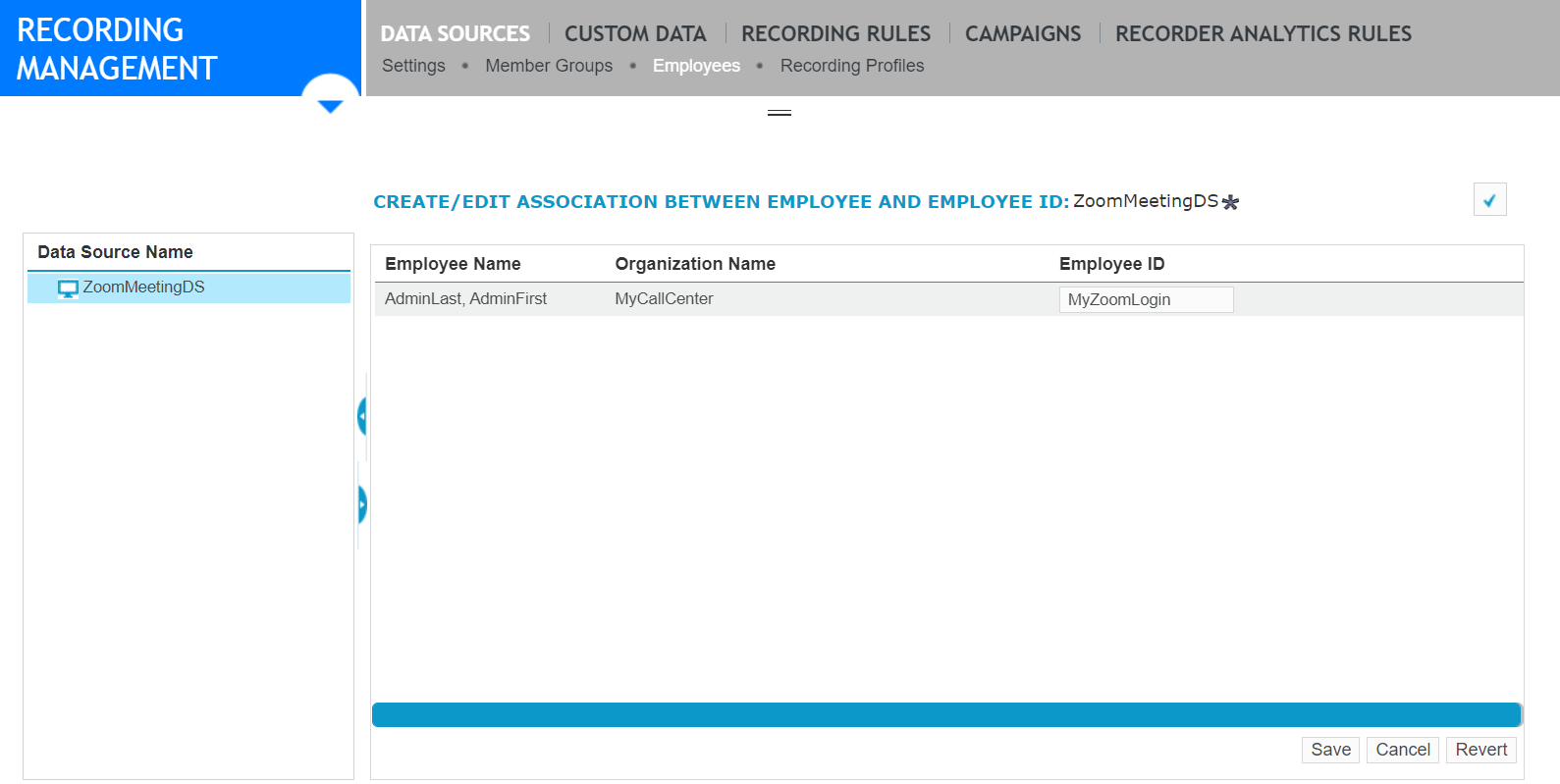
-
Enter the Employee ID. This ID must be the Zoom sign in name.
-
Click Save.
-
Repeat for each employee.
What to do next
“Create Employees and Add Employee IDs” (Recorder Configuration and Administration Guide)