Create capture profiles
You may have employees or organizations for whom you want to capture certain interactions types. To reduce effort and simplify administration, you can use a capture profile to define what is captured for specific organizations and employees.
What you should know
You can create a maximum of 200 capture profile.
Required privileges: View Recording Profiles and Edit Recording Profiles.
A capture profile can block or allow interaction capture for specific employees or entire organizations. The settings for an organization override the settings for individual employees. To avoid conflicts, do not include employees in more than one capture profile. Example: The organization MyCompanyOrg includes the employee Jane. The capture profile A is set to capture all interactions for MyCompanyOrg. capture profile B is set to not capture all interactions for Jane. In this scenario, Jane's interactions are captured.
At least one capture profile that records audio is required.
Before you begin
Add employees to the data source
Configure Zoom Meetings to record all media
Procedure
-
Go to Recording Management. Under Data Source, select Capture Endpoints.
-
In the Data Source column, select the Application (
 ) data source for the platform.
 -
On the Capture Endpoints page, select the Create option.
-
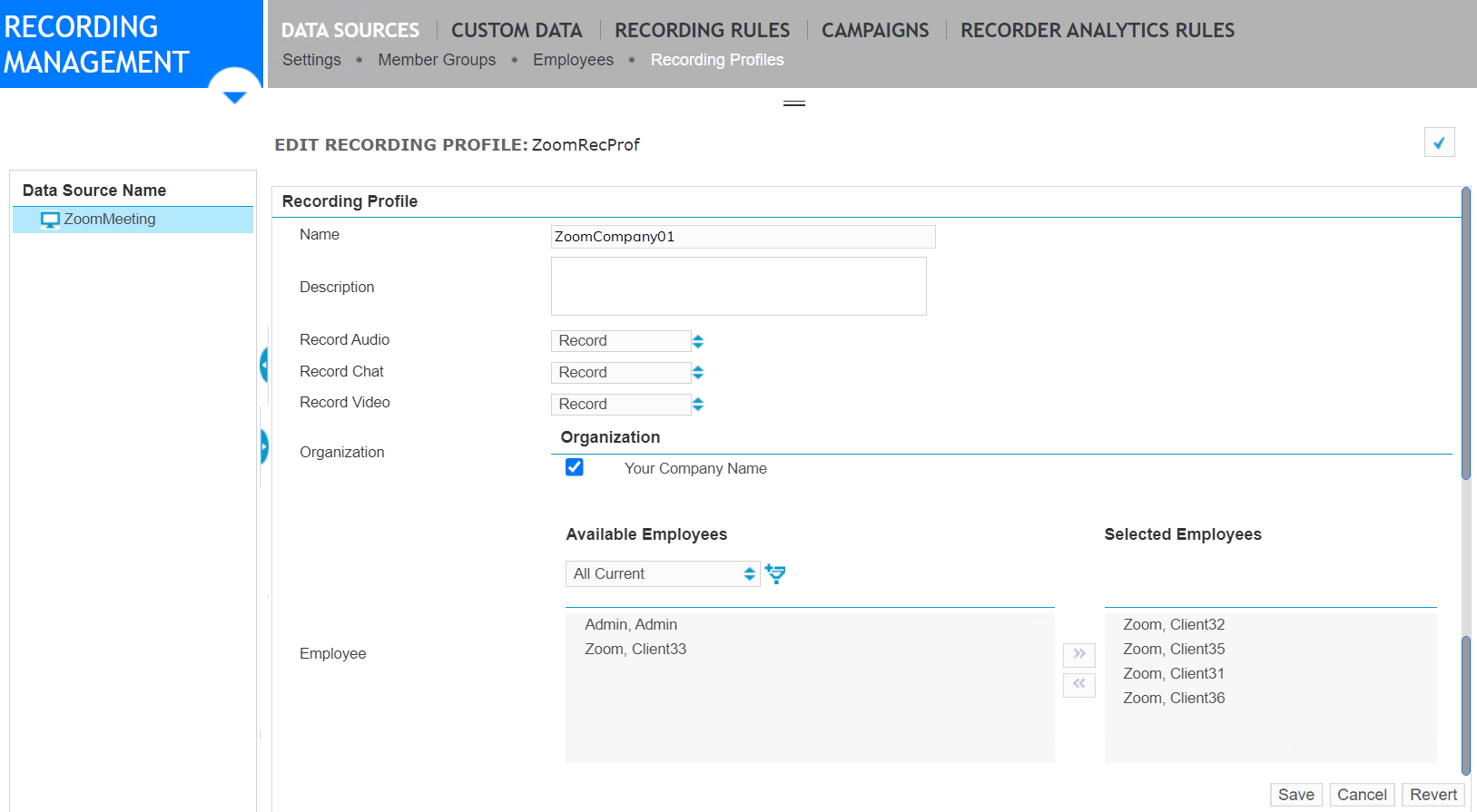
Choose what you want to capture.
Select a check box to enable capturing. Clear a check box to disable capturing.
-
Add organizations, employees, or both.
-
Organization: Organizations are created under Organization Management. You can add multiple Organizations to a single capture profile. Selecting a parent Organization automatically selects its children, but you can clear the child organizations individually.
-
Employee: Employees are set up under User Management. Select one or more employees from the left pane, then use the arrow buttons to move them to the right. If you have many employees, use the filter tool to narrow the selection.
-
-
Click Save.
What to do next