Create Server-to-Server OAuth app for Zoom Meetings
Configure the Zoom Meetings platform to authorize communications from the Verint capture service. All parameters, roles, and permissions listed in the procedure are the minimum required.
Before you begin
Install and configure the Zoom Meetings software.
Procedure
-
Go to the Zoom App Marketplace and sign in with your Zoom account provided by the customer.
-
In the upper right corner, select Develop, then Build App.
-
Under Server-to-Server OAuth, select the Create button.
-
Enter an App Name. Choose something that uniquely identifies this application. For example, "Zoom OAuth - Rec1".
-
Select Account-level app as the app type.
-
Turn off the option to share the app on the Zoom App Marketplace.
-
Select the Create button.
-
Under App Credentials, copy and save the Account ID, Client ID, and Client Secret to a text file. You need these values later in this procedure.
-
Select Information. Enter the following:
-
Enter a Short Description and Company Name.
-
Under Developer Contact Information, your Name and Email Address.
-
-
Select Scopes, then select the Add Scopes button.
-
Add the following scopes for your app:
-
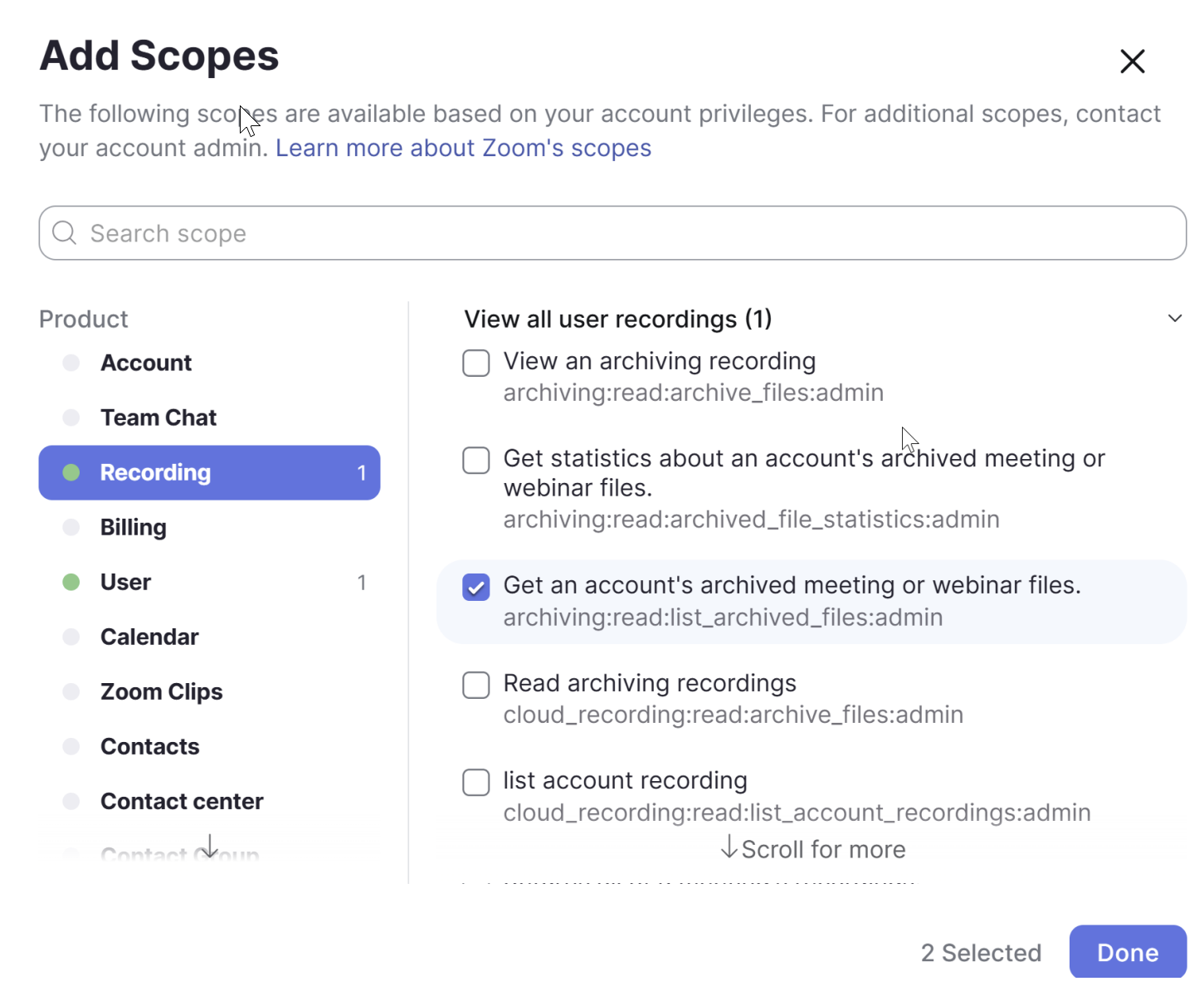
Under Recording, select View all user recordings and Get an account's archived meeting or webinar files.
-
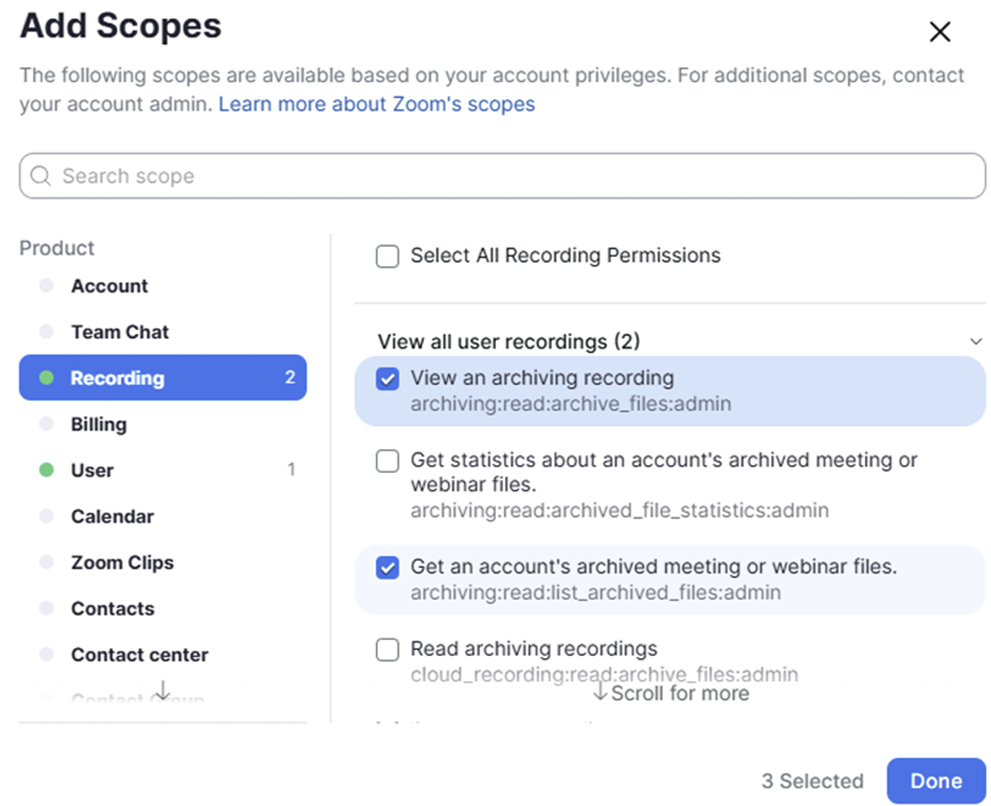
Optional. For specific meeting recovery, under Recording, select View an archiving recording and Get an account's archived meeting or webinar files.
-
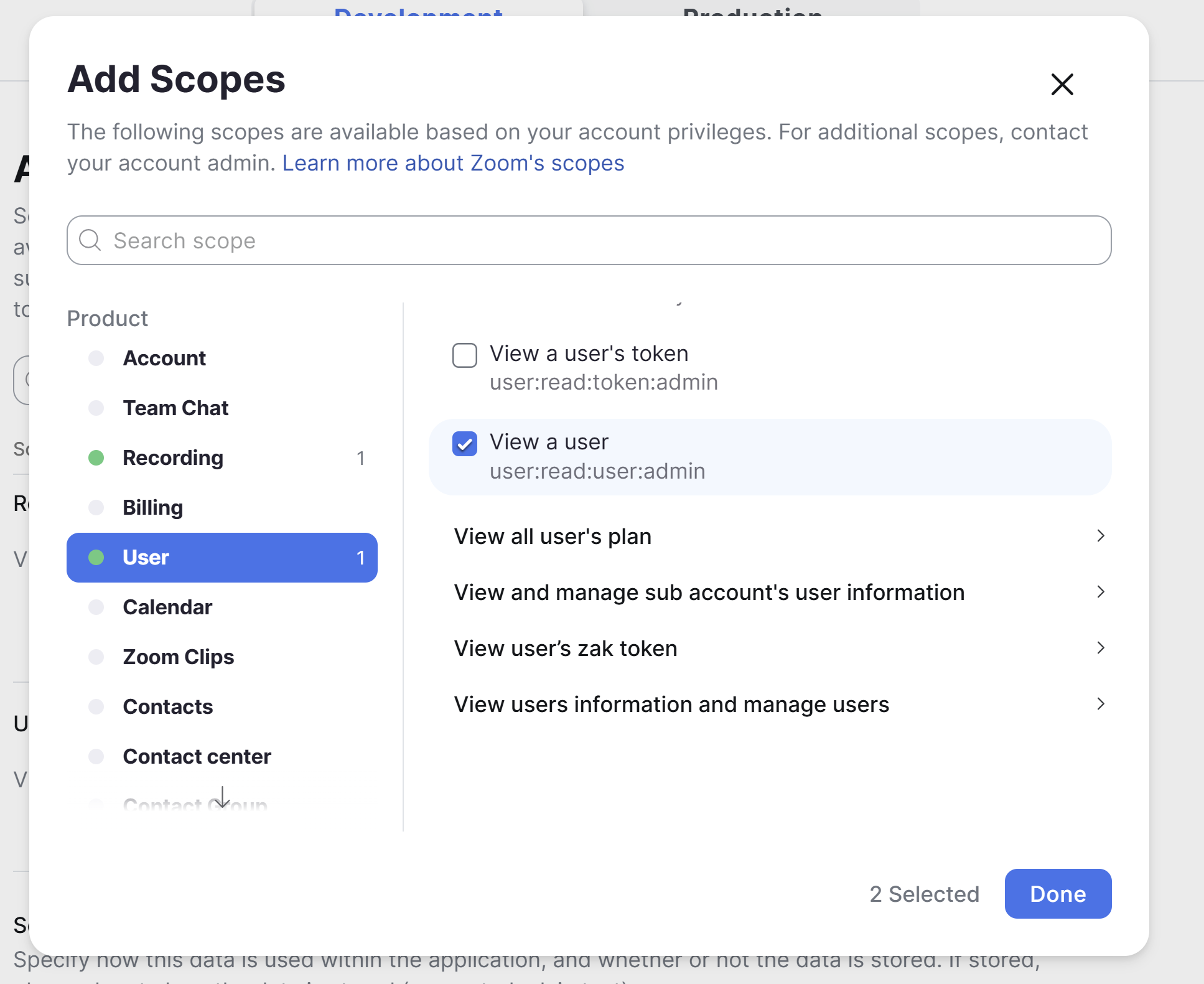
Under User, select View all users information and View a user.
-
-
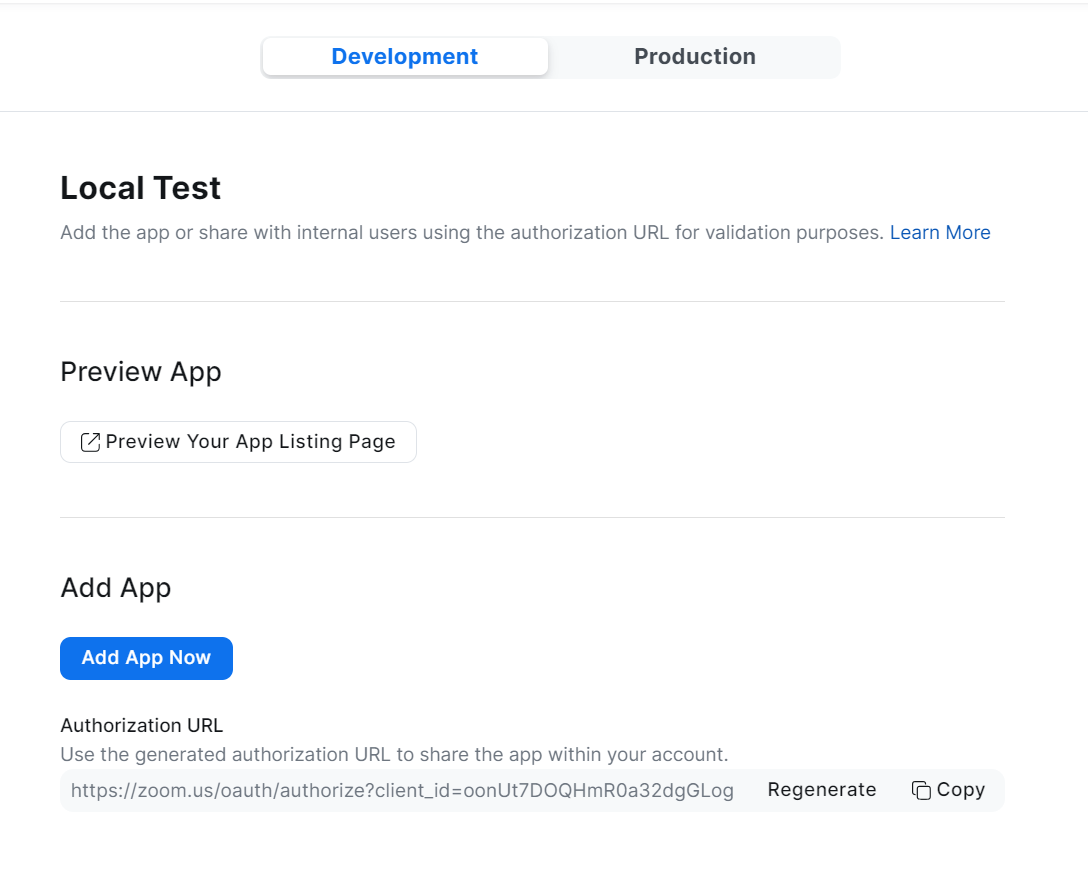
Select Done, then select Continue to add Add App Now.
-
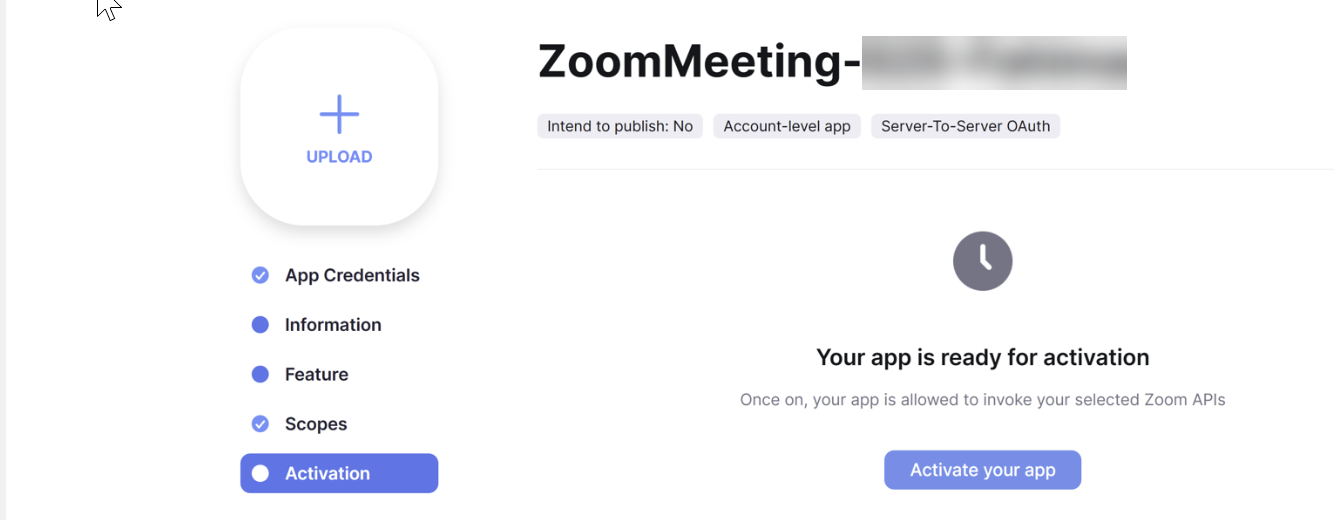
Under Activation, select Activate your app.
What to do next