Set up ksctl on your workstation
On your workstation, set up the appropriate version of the ksctl utility (ksctl-<os>), where <os> refers to your operating system (Windows or Linux). The setup process includes configuring basic authentication variables required for ksctl to function properly. Specifically, you provide the URL and login credentials of the target CipherTrust Manager system that you want to manage.
Before you begin
Download and unzip the ksctl_images.zip file
Procedure: for Windows
-
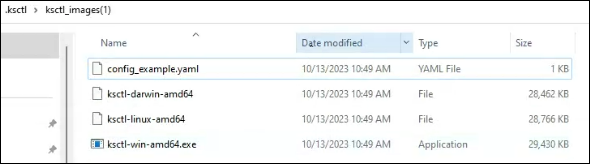
On your Windows workstation, rename the following files:
-
ksctl-win-amd64.exe file to ksctl.exe.
-
Config_example.yaml file to config.yaml.
-
-
Copy the .ksctl folder in your %userprofile% directory.
For example, %userprofile%\.ksctl\config.yaml and %userprofile%\.ksctl\ksctl.exe.
-
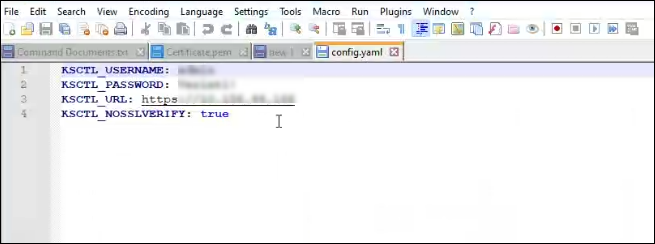
From the .ksctl folder, open config.yaml, and update the following parameters:
-
KSCTL_USERNAME - The user name that ksctl uses to authenticate with the target CipherTrust Manager where the keys will be imported.
-
KSCTL_PASSWORD - The password for the specified user name.
-
KSCTL_URL - The URL of the target CipherTrust Manager server that you want to manage. Example: https://10.156.11.111
-
-
Validate that ksctl is deployed correctly and runs without errors:
-
Open the Windows command prompt as an Administrator.
-
Go to the folder that contains ksctl.exe.
-
At the prompt, enter the command
ksctl.exe.
-
Procedure : for Linux
-
On your Linux workstation, Locate the unzipped files, rename the file of choice to ksctl and move it to a directory within your path.
-
Create a ksctl configuration file.
-
Create a .ksctl directory in your $HOME directory:
-
In the $HOME/.ksctl directory, update the config.yaml file with the following information:
-
KSCTL_USERNAME - The user name that ksctl uses to authenticate with the target CipherTrust Manager where the keys will be imported.
-
KSCTL_PASSWORD - The password for the specified user name.
-
KSCTL_URL - The URL of the target CipherTrust Manager server that you want to manage. Example: https://10.156.11.111
-
-
-
Printenv $HOME.
What to do next