Create the default employee
Conversations not involving agents include messages with chatbots, messages between platform visitors, and unanswered messages from visitors. To capture these non-agent interactions, create a default employee account.
The Service Provider sets up the default employee.
Default employee required per tenant data source
If the default employee is missing from a data source,
For a single tenant, add a single default employee. For a multi-tenant deployment, add a single default employee to each tenant's data source.
Before you begin
Create a Conversocial data source
Procedure
-
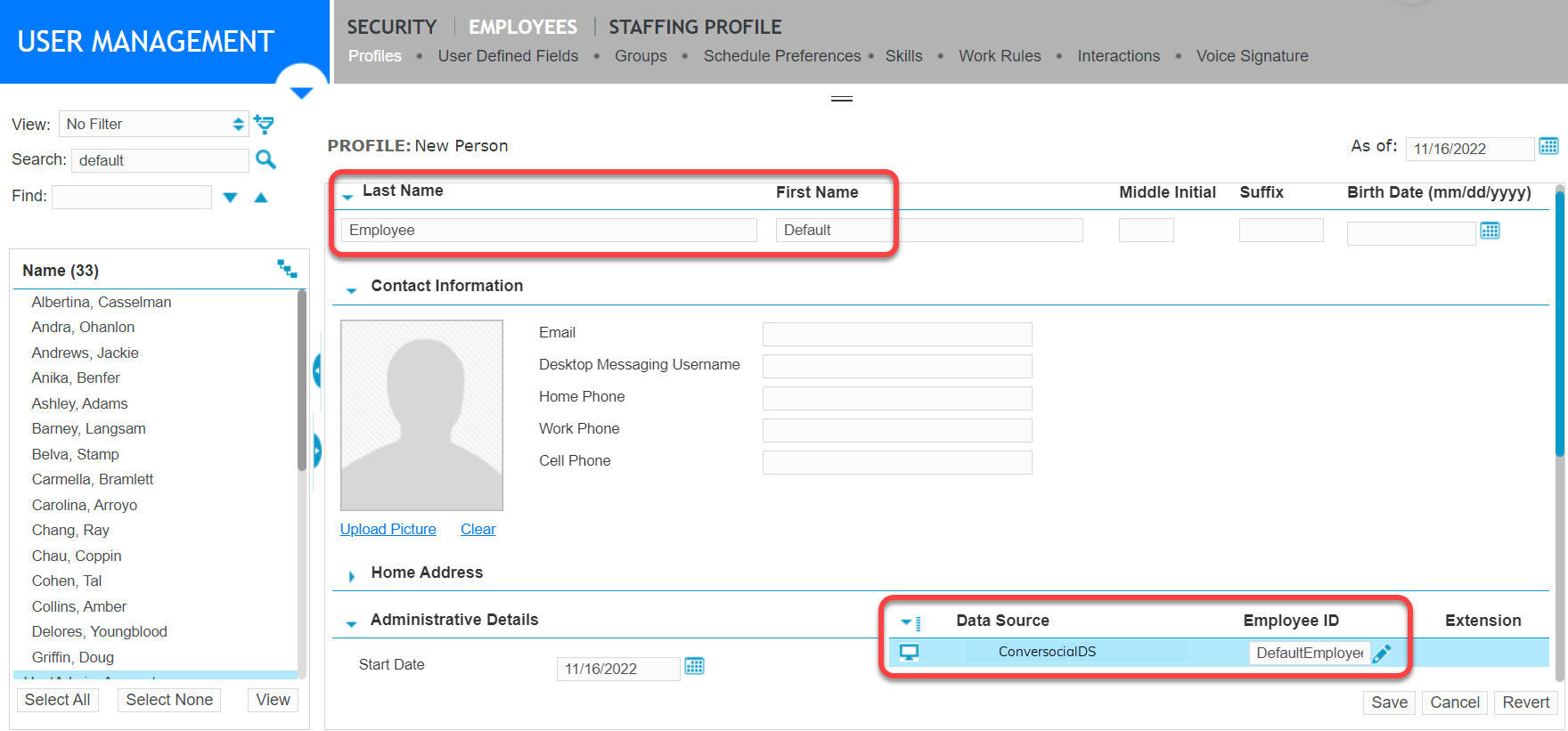
Go to User Management. Under Employees, select Profiles.
-
Create a new employee with a first and last name. You can use any name; for example, Default Employee.
-
Add the user to the tenant's organization.
-
Assign the default employee to the Conversocial data source:
-
Under Administrative Details, under Data Source, find the source for Verint Messaging (Conversocial).
-
In the Employee ID field, enter any text to identify the default employee.
-
Click Save.
-
-
Map the default employee to the data source:
-
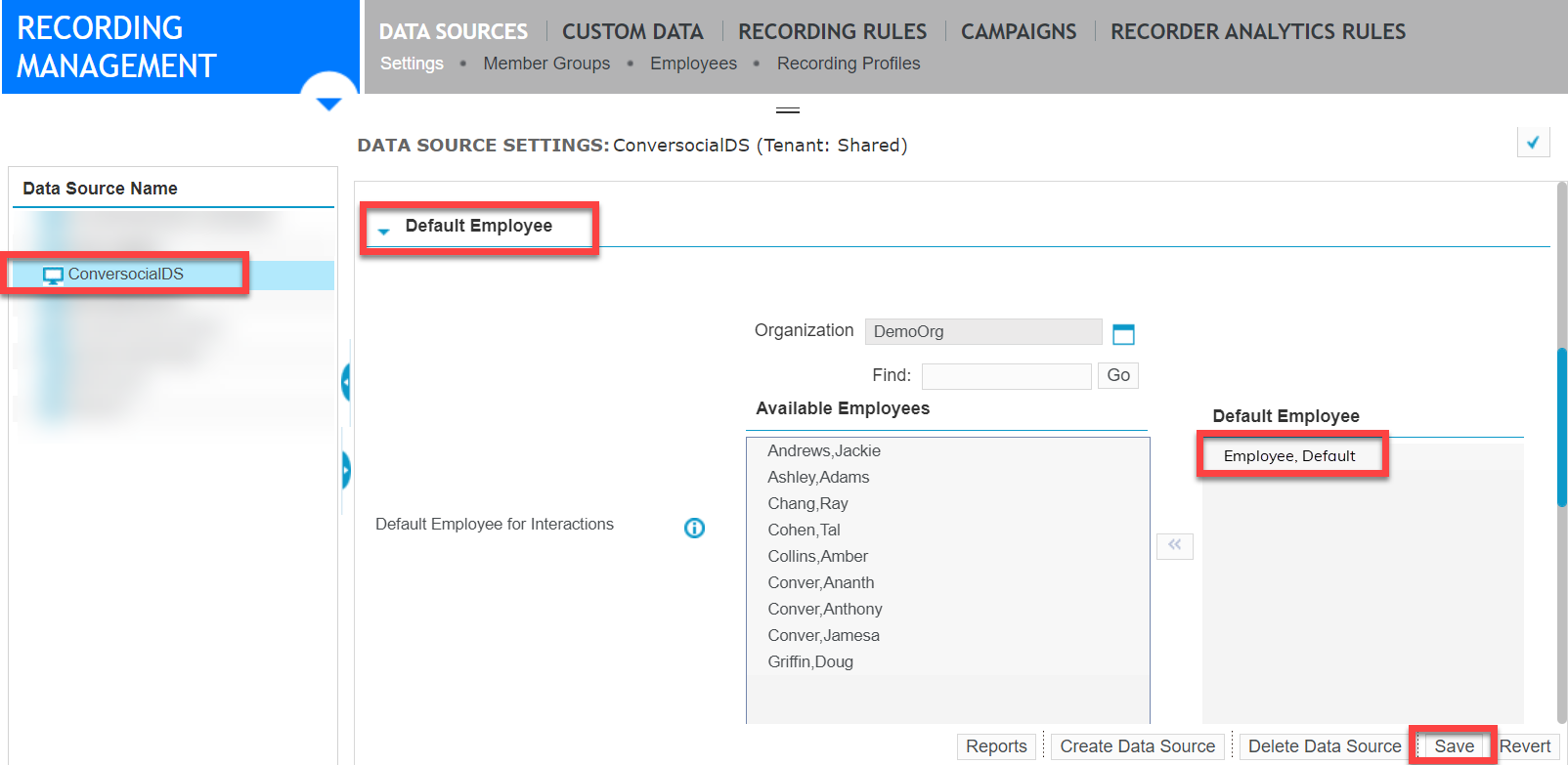
Go to Recording Management, under Data Source, click Settings.
-
Under Data Source Name, select the data source for Verint Messaging.
-
Expand the Default Employee section.
-
Select the tenant's organization.
-
From the list of Available Employees, select the default employee account, then click
 (right chevron button) to move the employee to the Default Employee list.
 -
Click Save.
-
A default employee account is now assigned to the Conversocial data source. When messages from Verint Messaging do not include an agent, but are from chat bots or visitors, the message will be identified as from the default employee account.
What to do next
Workflow: Configure EDM Capture for Verint Messaging
Recording agents, bots, and visitors
Configuring employee profiles (WFO User Management Guide)