Map attribute to custom field
To make a standard or custom attribute (meta data) from a conversation available in Verint, map the attribute to a custom field.
What you should know
-
Required privileges: Interactions > Administration > Custom Data.
-
Attributes are listed in the order they were added.
Before you begin
-
Get the name of the attribute you want to make available.
-
Log into Enterprise Manager with an account other than the system account (wsuperuser), which does not have the correct permissions for this procedure.
Procedure
-
Enable a custom data field.
-
In Enterprise Manager, go to Interactions, under Administration, click Custom Data.
-
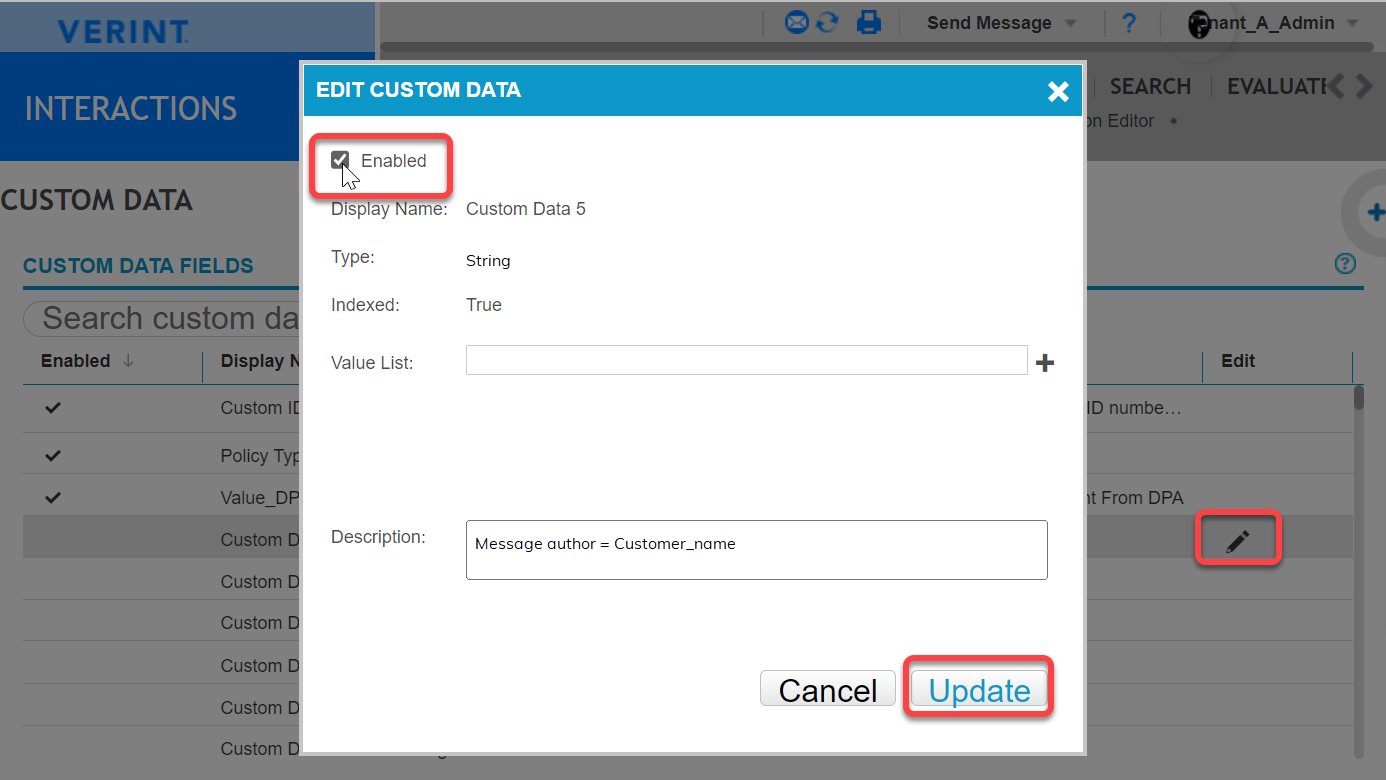
Select the display name of a field, then click the edit icon (
 ) on the right.
 -
Select the Enabled check box.
-
In Description, enter a name for the custom data field.
Example: Sender = customer_name
-
Click Update.
-
-
Give the field a meaningful name.
-
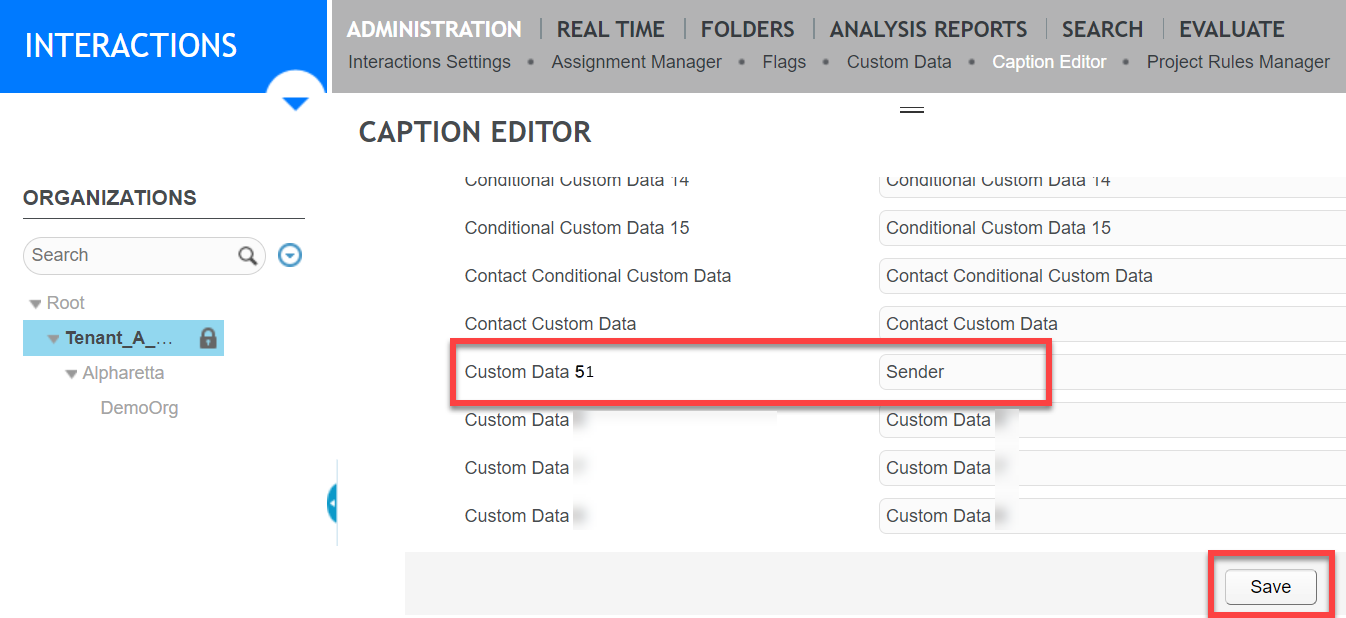
From Interactions, under Administration, click Caption Editor.
-
In the Caption to modify, select Custom Data.
-
Under Interactions Application, find the attribute you enabled previously.
-
Enter a name for the attribute, then click Save.
-
-
Create a custom attribute.
-
In Enterprise Manager, go to Recording Management, under Custom Data, click Attributes.
-
Click Create.
-
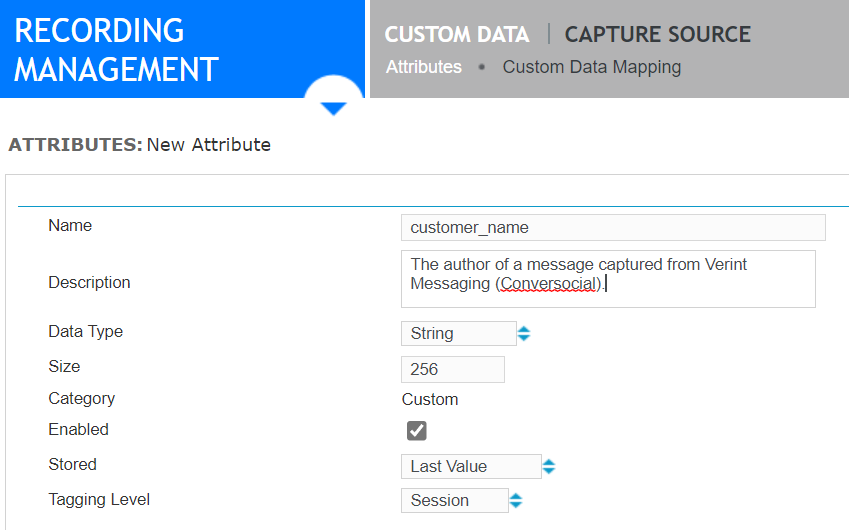
Enter a name for the attribute that makes it easily identifiable.
-
Select a Data Type that matches the custom field selected previously.
-
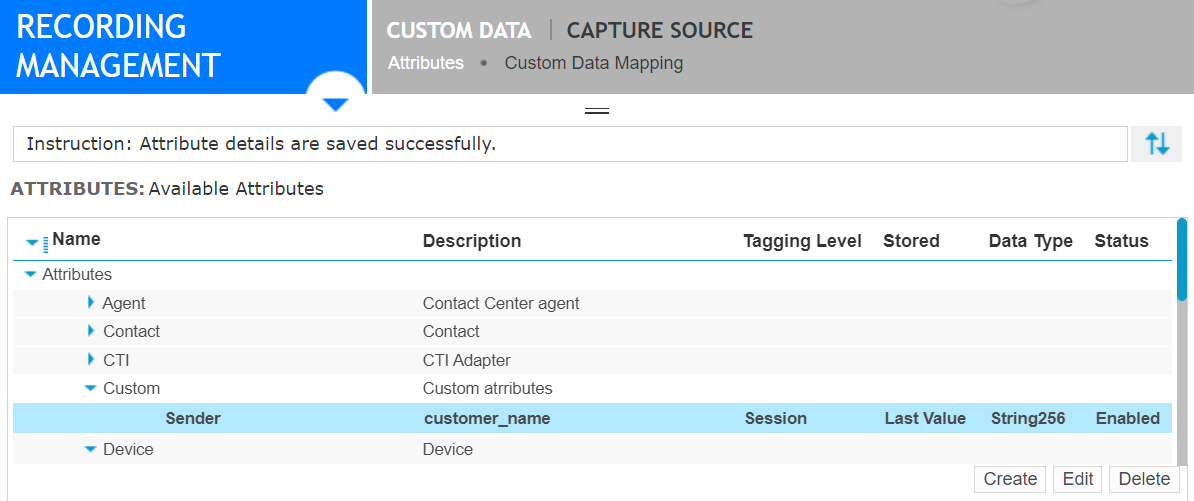
Click Save.
Wait for the system to add the attribute to the list.
-
-
Map the custom field to the custom attribute.
-
In Recording Management, under Custom Data, click Custom Data Mapping.
-
Locate the field that you enabled in step 1. For example,
Sender. -
Click the blue arrows beside the Attribute Mapping field, then select an attribute (
Senderin our example) from the pop-up list.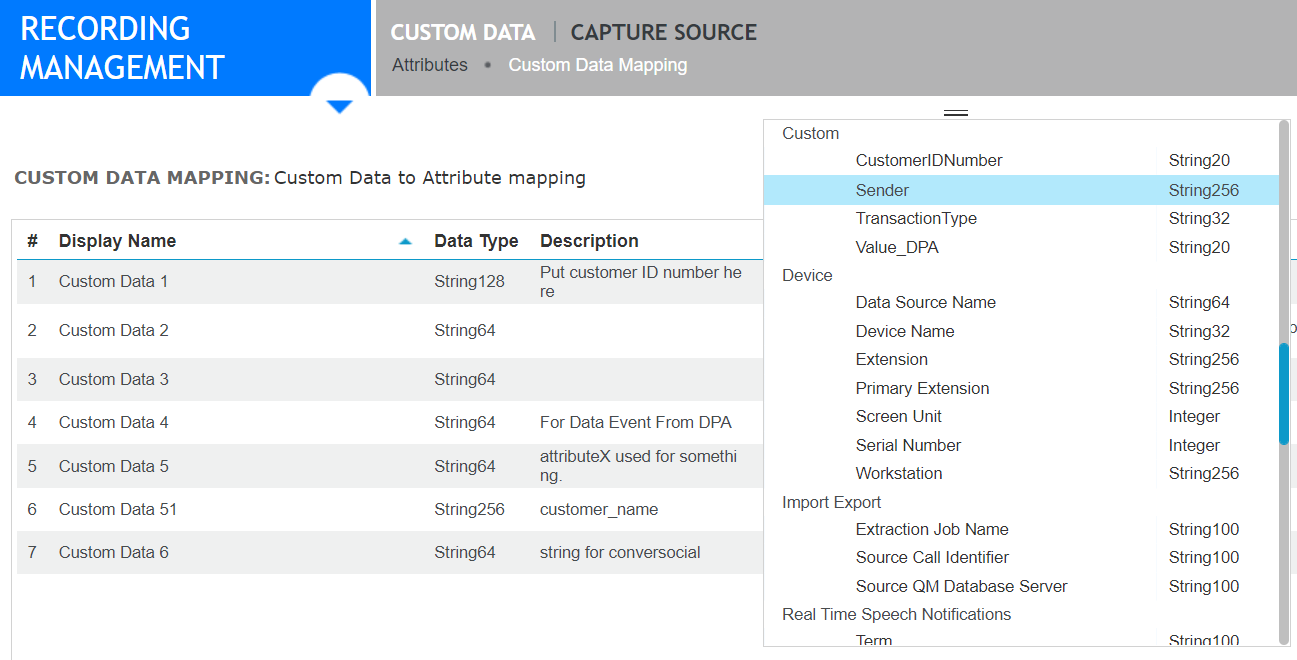
-
Click Save.
-
For interactions that include this type of data (attribute), Verint EDM stores the data. You can search for the new field in Interactions and Risk Management.
What to do next
Map meta data to custom attribute
Search and replay interactions
Workflow: Configure EDM Capture for Verint Messaging
Search result columns (Risk Management Administration and User Guide)
Create, edit, or delete an attribute (Recorder Configuration and Administration Guide)
For all rules governing the External Name field, including cases where the external attribute consists of a list of values, see "Attribute external name syntax" (Recorder Configuration and Administration Guide).