Upload CipherTrust Manager license
To access all administration features—such as creating domains, clustering, and scheduling—you must obtain and activate a valid, permanent license from
Before you begin
Procedure
-
Obtain the Key Manager Lock Code:
-
Sign into the CipherTrust Manager Web Interface.
-
From Admin Settings, go to Licensing, and select Lock codes.
-
Click
 to expand Key Manager Lock Code.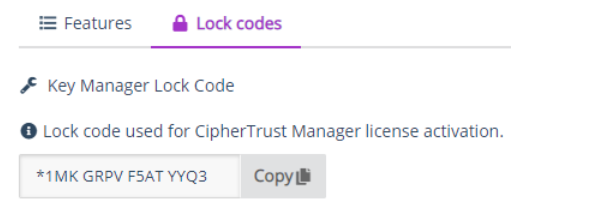
-
Copy the lock code.
This lock code is needed to activate a CipherTrust Manager license. Only one lock code is required.
-
-
To get a permanent license, open a support ticket with
-
Customer Account Number
-
CipherTrust license sales order number
-
Key Manager Lock Code (up to two (2) for every one (1) CipherTrust licenses ordered)
-
-
When you receive the license file, upload it:
-
Sign in to CipherTrust Manager Web Interface.
-
From Admin Settings, go to the Licensing page, select Add License.
-
Select Upload License and select the license file.
-
Select Add License to save the details.
-
What to do next